Define pricing equation
Learn how to define pricing equation in the Phasio manufacturing platform
Each manufacturing process in Phasio can be paired with a custom pricing equation that reflects your specific cost drivers, production logic, and business goals. These equations use flexible, math-based models to calculate part costs based on material properties, part geometry, machine time, and more.
This guide walks through how to define or edit a pricing equation for a given process.
Create your pricing equation
The Equation interface allows you to configure pricing algorithms that determine production costs:
-
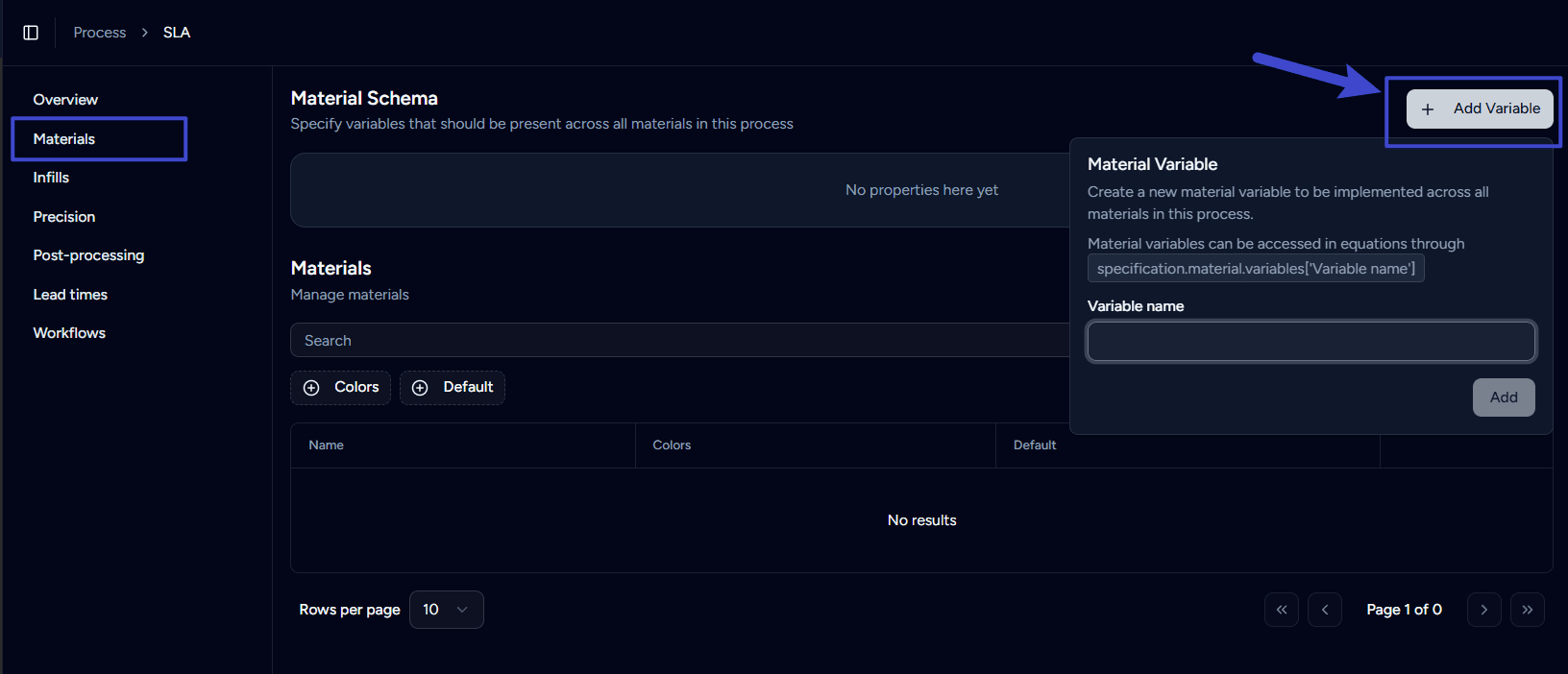
Click on Materials.
-
Click on Add Variables under Material Schema to add a new material variable to be implemented across all materials in this process.
-
After adding the necessary Material Variables, click on Overview, then Create Equation to add a new equation.
-
Enter the Equation name in the field at the bottom of the screen.
-
Using the Typescript equation editor, build your pricing formulas.
Use the equation editor to build pricing formulas with mathematical expressions. You can also reference properties such as:
- Material properties (density, cost, waste).
- Part characteristics (volume, surface area, complexity).
- Production inputs (machine time, labor).
- Business factors (margin, overhead).
⚠️ Phasio provides a library of common equation templates. These pre-configured pricing models offer a quick starting point for building your own custom equations. Reach out to Phasio Support for further details.
Flag a quote line for manual review
Your pricing equation can signal that a part needs your review before the customer sees a price. When the flag is set, the price is hidden on the storefront and checkout is blocked until you approve.
done({ price: calculatedPrice, reviewRequired: true })The review flag also triggers automatically when the computed price is zero, negative, or invalid, so customers will never see a broken price.
For a full walkthrough including practical examples, see the Review-required pricing guide.
Save changes
-
Click on the Save button in the bottom left of the screen.
-
Click on the Mark as Live button to apply this pricing equation (model) to all future quotes and orders using this manufacturing process.
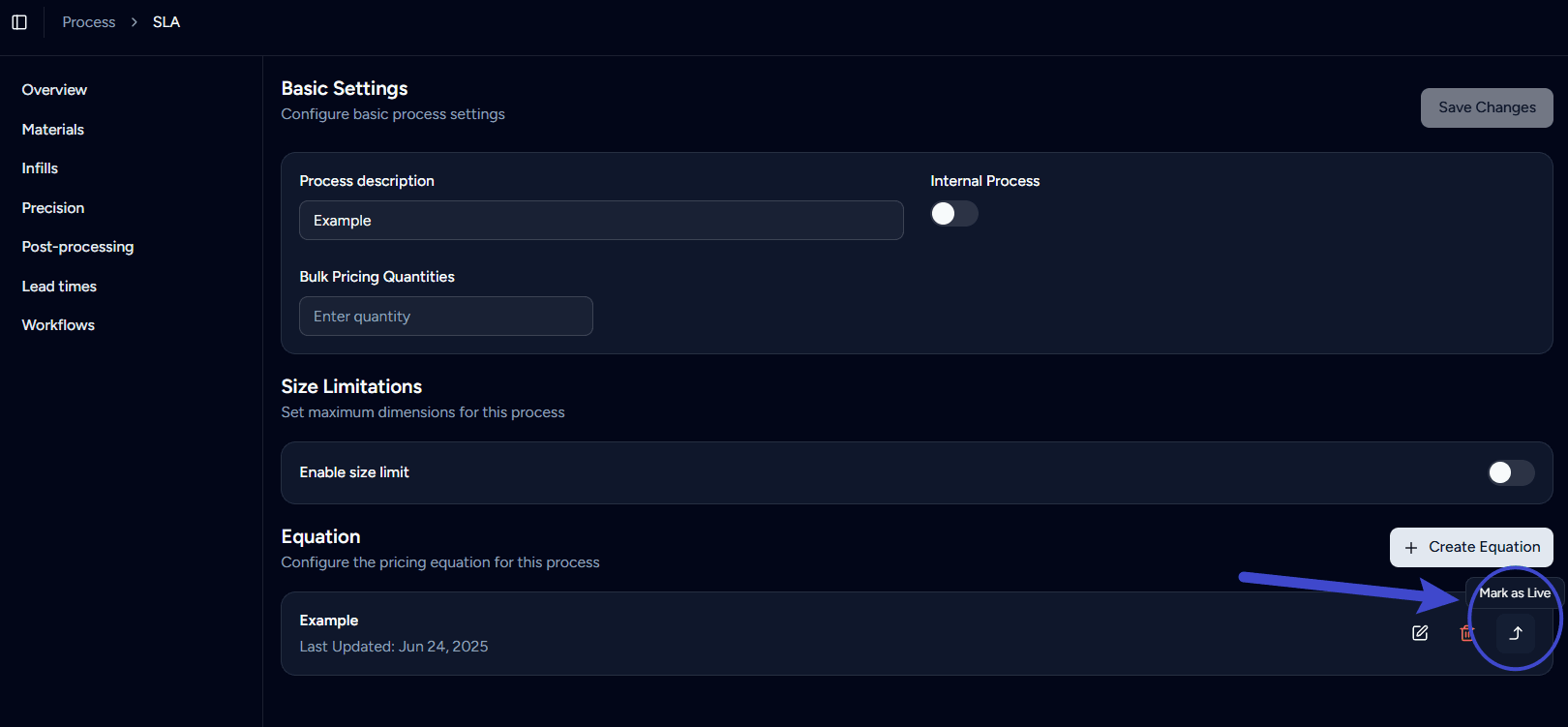
☝️ Tip: You can create multiple equations for the same process and choose which equation to be live on your Storefront.
Last updated on